Viewing Conversations
Browse, filter, and review conversations across all your channels.
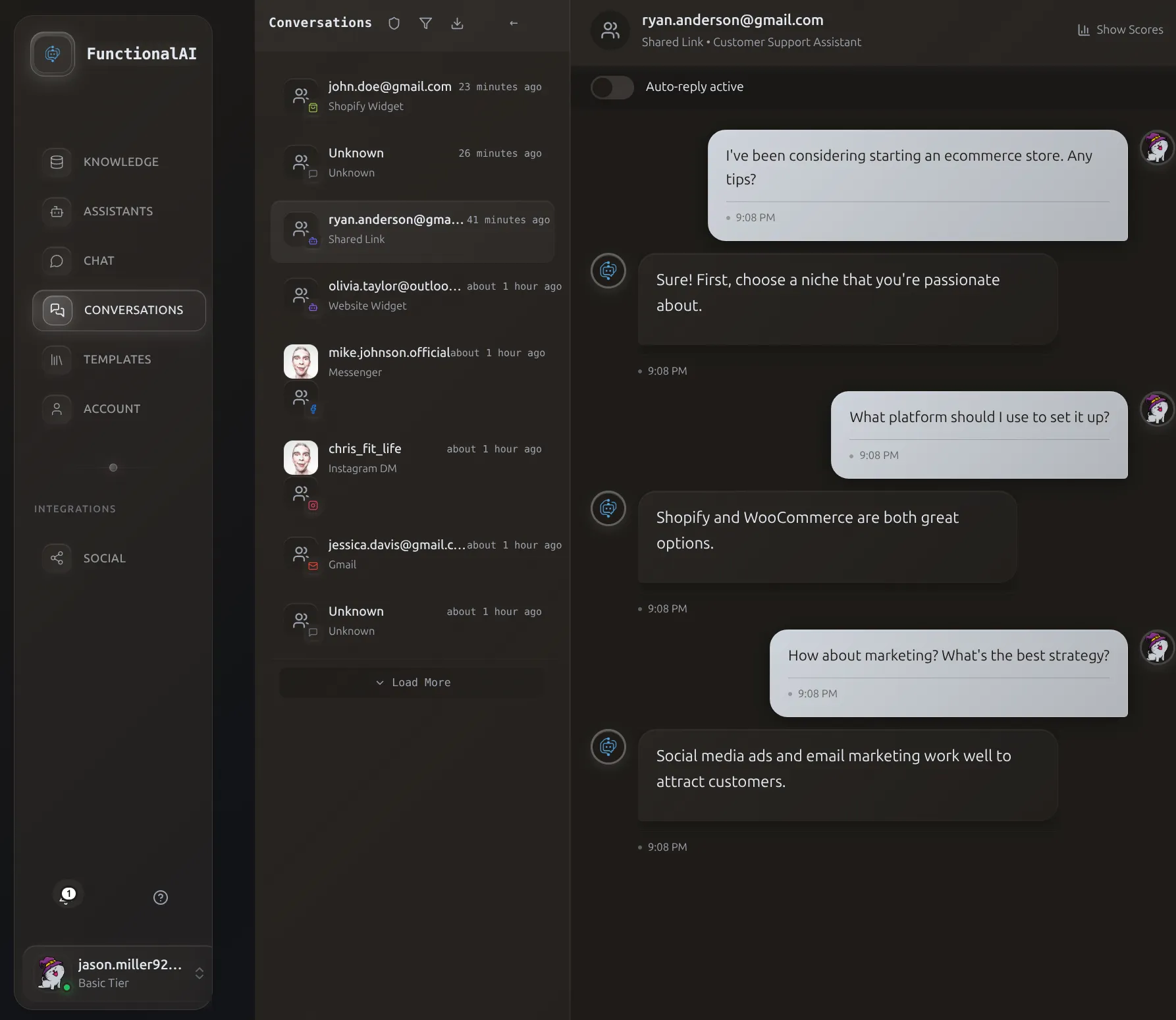 The unified inbox shows all conversations from every channel - Website, Shopify, Instagram, Messenger, Gmail, and more.
Quick Filters
- New messages: Filter by Unread
- Single channel: Select Instagram, Shopify, etc.
- Recent activity: Filter by Last 7 days
- Specific conversation: Use Search box
Accessing Conversations
- Click Conversations in the sidebar
- The conversation list loads with recent interactions
Conversation List
List Layout
Each row shows:
| Element | Description |
|---|---|
| Channel icon | Visual indicator of source (Shopify, Instagram, etc.) |
| User identifier | Name, email, or anonymous ID |
| Message preview | First line of the last message |
| Timestamp | When the interaction occurred |
| Status indicator | Read/unread state |
Sorting
Conversations are sorted by most recent activity by default.
Filtering Conversations
The Conversations dashboard provides powerful filtering to help you find exactly what you're looking for.
By Channel
Filter to show only conversations from specific platforms:
- Click the Channel filter dropdown
- Select one or more channels:
- All Channels (default)
- Instagram DM - Direct message conversations
- Instagram Comment - Comment-based threads
- Facebook Messenger - Messenger conversations
- Facebook Comment - Facebook post comment threads
- Shopify Widget - Shopify store widget conversations
- Website Widget - Website chatbot conversations
- Shared Link - Share URL conversations
- Gmail - Email conversations
- The list updates automatically
You can select multiple channels to view conversations from several sources simultaneously.
By Assistant
If you have multiple assistants:
- Use the Assistant dropdown to filter
- Select a specific assistant or view all
- Useful when different assistants handle different channels or use cases
By Date Range
Narrow down by time period using preset ranges or custom dates:
Preset Ranges:
- Click the Date Range filter
- Select a preset:
- Today - Conversations with activity today
- Yesterday - Previous day's activity
- Last 7 days - Past week
- Last 30 days - Past month
- This month - Current calendar month
- Last month - Previous calendar month
Custom Range:
- Click Custom Range
- Select start date in the calendar
- Select end date in the calendar
- Click Apply to filter
The date filter looks at the last activity time of each conversation, not when it was created.
By Pause Status
Filter by auto-reply state:
- All - Show all conversations
- Active - Only conversations with auto-reply enabled
- Paused - Only conversations where auto-reply is paused (requiring manual intervention)
This is particularly useful for finding conversations that need human attention.
Search
The search box allows you to find specific conversations:
What you can search: - User names or anonymous identifiers - Platform usernames (Instagram handles, etc.) - Message content within conversations - Email addresses (for Gmail/identified users)
Search Tips:
- Type your search term in the search box
- Press Enter or click the Search button
- Search is case-insensitive
- Partial matches are supported
- Combine search with channel/date filters for precise results
Example searches:
- john - Find all conversations with "john" in username or content
- @username - Search for specific social media handles
- order - Find conversations mentioning orders
- refund - Locate refund-related conversations
Combining Filters
Filters work together to narrow down results:
Example combinations:
- Instagram DM + Last 7 days + Search for "product" = Recent Instagram DMs about products
- Paused + Today = Conversations needing human attention today
- Shopify Widget + This month = All Shopify conversations this month
Resetting Filters
To clear all filters and return to the full list:
- Click the Reset or Clear Filters button
- All filters return to default (All Channels, All Time)
- Search box clears
Viewing a Conversation
Opening a Thread
Click on any conversation row to open the full message thread.
Thread View
The conversation detail view shows the complete message history between your assistant and the user:
Key elements:
- Auto-scroll - Automatically scrolls to newest messages
- Chronological order - Messages displayed oldest to newest (top to bottom)
- Message pagination - Loads 20 messages at a time for performance
- Load older messages - Scroll to top to automatically load more history
- Real-time updates - New messages appear instantly via live subscriptions
- Visual message bubbles - Distinct styling for user vs. assistant messages
Message Details
Each message displays:
User Messages: - User's profile picture (from platform) - Username or anonymous identifier - Message content (text) - Attachments (images, files) - Timestamp - Platform-specific metadata
Assistant Responses: - Assistant's avatar - Response content (text) - Any generated content or recommendations - Timestamp - Model information (which LLM was used) - Token usage details (on hover)
Conversation Summary
When available, conversations display an AI-generated summary showing:
- Conversation Summary - Brief overview of the conversation topic
- Topics - Main subjects discussed
- Customer Intents - What the user was trying to accomplish
- Sentiment - Overall tone (positive, neutral, negative)
- Action Items - Suggested follow-up tasks
Hover over the info icon on a conversation card to view the summary.
Understanding Message Flow
Instagram and Facebook Messenger:
- User sends message on platform
- Webhook delivers to Functional AI
- Assistant processes (if auto-reply enabled)
- Response sent back to platform
Website/Shopify/Share Link:
- User types in embedded widget
- Message sent to Functional AI API
- Assistant streams response in real-time
- Both sides saved to history
Gmail:
- User sends email
- Webhook triggers message creation
- Assistant generates response
- Reply sent to user's inbox
Viewing Attachments
- Formats: JPG, PNG, GIF, WebP
- Click to view full size
- Auto-cached to AWS S3 for reliability
- Documents, PDFs show with file icon
- Click to download
- Stored on original platform
- Video attachments (Instagram, Messenger)
- Audio files (Gmail)
Tips for Effective Review
Prioritize: 1. Unread conversations 2. Flagged for follow-up 3. Recent high-volume periods
Watch for: - User satisfaction signals ("thanks", "helpful") - Frustration language - Repeated questions (confusion) - Inaccurate information
Troubleshooting
Conversations not loading
Quick fixes:
- Refresh the page (F5)
- Clear all filters
- Check internet connection
- Try different browser
Technical causes:
- AppSync connection issues
- JWT token expiration
- Network firewall blocking WebSocket
Messages not appearing
- Webhook not configured
- Token expired - re-authenticate
- App not approved (requires review)
- Message type not supported (stories, reels)
- Widget script not embedded
- Bearer token invalid
- CORS issues (check console)
- Wrong email address
- Filtered by channel rules
- In spam folder
Debug:
- Open browser console (F12)
- Check Network tab for failed requests
- Test with message from your account
Missing channels in dropdown
- Integration not connected
- No conversations yet (appears after first message)
- Assistant not configured for that channel
- Re-authenticate the integration
Messages loading slowly
Normal behavior:
- Threads with hundreds of messages load 20 at a time
- Scroll to top to load older messages
- Images load lazily
Speed up:
- Check network speed
- Clear browser cache
Search not finding results
- Try different keywords
- Expand date range
- Remove other filters
- Search is case-insensitive, partial match
Real-time updates not working
Causes:
- WebSocket connection lost
- Corporate network blocking WebSockets
- Page in background too long
- JWT token expired
Fix: Refresh page, use modern browser
Images not displaying
Common:
- Platform CDN URL expired (auto-refreshes)
- User deleted content
- Privacy settings restrict access
System handles:
- Auto-caches to AWS S3
- Fallback avatars when unavailable