Exporting Conversations
Export your conversation history to HTML files for analysis, archival, compliance, or sharing.
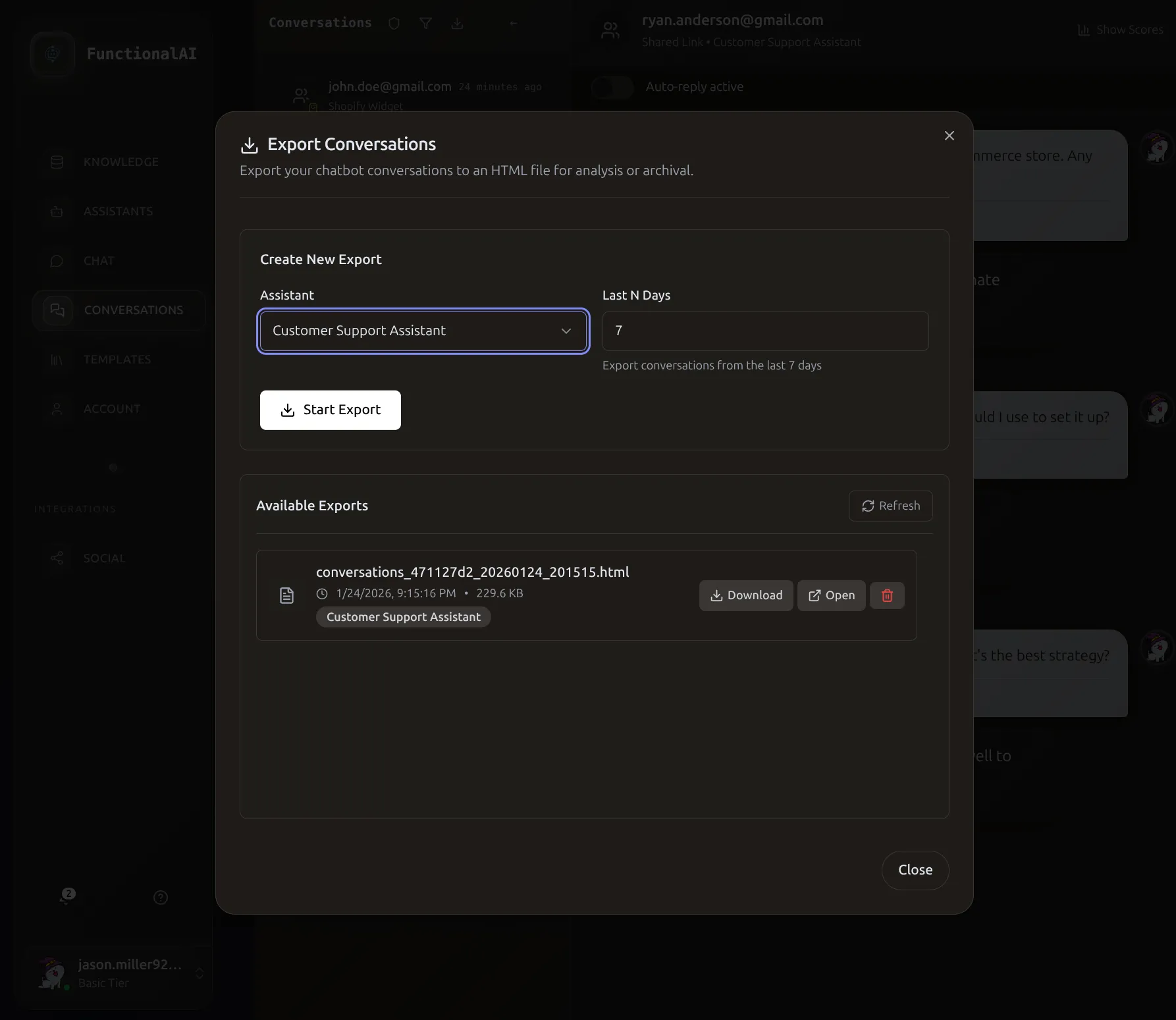 The Export dialog lets you select an assistant and time range, then download HTML archives of conversations.
Overview
The export feature creates downloadable HTML files containing your conversation history. Exports include:
- Complete message threads
- User and assistant messages
- Timestamps and metadata
- Conversation summaries (when available)
When to Export
- Regular Backups
- Monthly exports ensure you have records regardless of retention policies
- Compliance Requirements
- Maintain conversation records for regulatory or legal requirements
- Performance Analysis
- Review conversation quality and patterns over time
- Training Materials
- Create example conversations for team training
- Stakeholder Reports
- Share conversation performance with management
How to Export
Step 1: Open Export Dialog
- Go to Conversations in the sidebar
- Click the Export button (download icon) in the toolbar
- The export dialog opens
Step 2: Configure Export
- Select Assistant
- Choose which assistant's conversations to export. Each export covers one assistant.
- Time Range
- Enter number of days to include (1-365). Examples:
-
7- Last week -30- Last month -90- Last quarter
Step 3: Start Export
- Click Start Export
- The export job begins processing in the background
- A confirmation message appears
- The export will appear in "Available Exports" when ready
Processing Time
- Small exports (few conversations): Seconds
- Medium exports (dozens): 30-60 seconds
- Large exports (hundreds): 1-2 minutes
Step 4: Download
- Wait for the export to appear in the list (refreshes automatically)
- Click Download to save the HTML file
- Or click Open to view in browser first
Managing Exports
Available Exports List
Your recent exports show:
- Filename:
conversations_{assistant_id}_{timestamp}.html - Date created: When the export was generated
- Assistant: Which assistant's conversations (shown as badge)
- Actions: Download, Open, Delete
Export Limits
| Limit | Value |
|---|---|
| Maximum exports | 20 per user |
| Retention period | 30 days |
| Time range | 1-365 days |
When you reach 20 exports, older ones are automatically deleted.
Deleting Exports
Click the Delete button (trash icon) to permanently remove an export. This cannot be undone.
Using Exported Files
Opening the HTML File
- Locate the downloaded file (usually in Downloads folder)
- Double-click to open in your default browser
- Or right-click > Open With > choose browser
What's Included
The HTML export contains:
- Header: Assistant name, export date, time range
- Conversations: All conversations from the period
- Messages: Complete message history for each
- Metadata: Timestamps, channel info, basic statistics
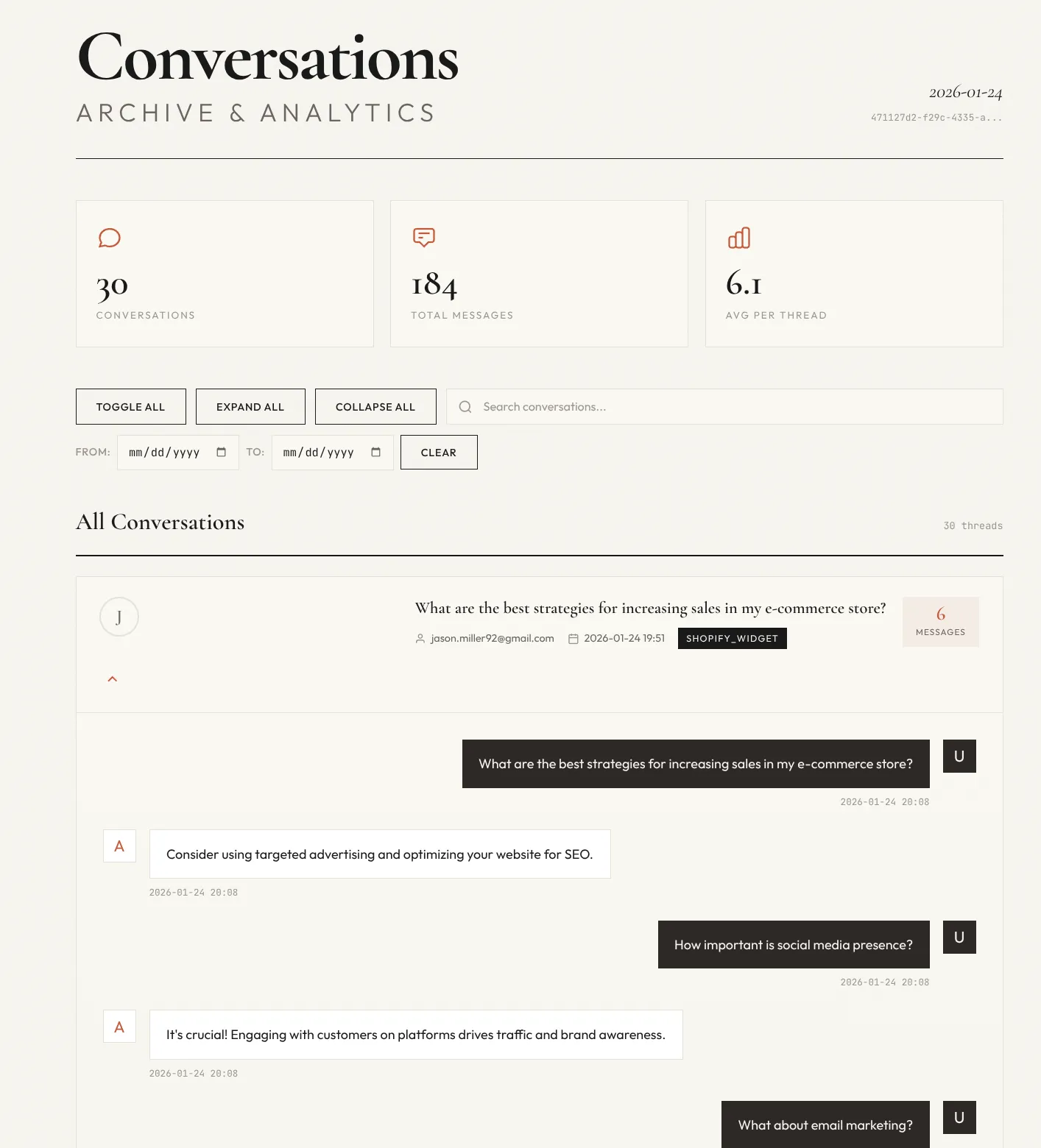 Exported HTML files include summary statistics, searchable threads, and formatted message history.
Converting to PDF
If you need PDF format:
- Open the HTML file in Chrome or Firefox
- Press
Ctrl+P(Windows) orCmd+P(Mac) - Select "Save as PDF" as the destination
- Click Save
Printing
The HTML is styled for both screen viewing and printing:
- Open in browser
- Print (
Ctrl+P/Cmd+P) - Select your printer
Use Cases
Monthly Performance Review
Workflow: 1. At month end, export last 30 days 2. Review conversation quality 3. Identify common questions 4. Note areas for improvement 5. Store for records
Team Training
Workflow: 1. Export conversations with good examples 2. Annotate successful interactions 3. Share with team members 4. Discuss best practices
Compliance Records
Workflow: 1. Export on a regular schedule (monthly/quarterly) 2. Store in secure location per policy 3. Maintain audit trail 4. Document retention procedures
Customer Support Analysis
Workflow: 1. Export recent conversations 2. Identify trending issues 3. Update knowledge base with missing info 4. Improve assistant instructions
Best Practices
Regular Export Schedule
Set a reminder to export regularly: - High volume: Weekly exports - Medium volume: Monthly exports - Low volume: Quarterly exports
Secure Storage
Treat exported conversations as customer data: - Store in secure, access-controlled location - Follow your organization's data policies - Delete when no longer needed
Naming Organization
Keep downloaded files organized:
- Create dated folders (e.g., 2024-01-exports/)
- Add context to filenames after download
- Document what each export contains
Troubleshooting
Export not appearing in list
Wait and refresh: - Exports process asynchronously - Click Refresh button to check status - Large exports take 1-2 minutes
If still missing after 5 minutes: - Try a shorter time range - Verify assistant has conversations in that period - Check for error messages
Can't download export
Check: - Internet connection active - Popup blocker disabled for the site - Sufficient disk space
Try: - Use "Open" button instead - Right-click > Save link as - Different browser
Export file won't open
Solutions:
1. Verify file has .html extension
2. Right-click > Open With > Chrome/Firefox
3. Drag file into browser window
4. Re-download if file may be corrupted
Missing conversations in export
Check: - Correct date range selected - Correct assistant selected - Conversations exist for that period
Note: - Exports only include completed conversations - Very recent conversations may not be included
Export deleted too soon
Prevention: - Download immediately after generation - Store locally in organized folders - Set reminder before 30-day expiration
Data Privacy
What's Exported
- Conversation content (user and assistant messages)
- Timestamps
- User identifiers (name, email if provided)
- Channel information
- Basic metadata
What's Not Exported
- Internal system data
- Token/cost details
- Admin configurations
- Other users' conversations
Handling Exports
- Treat as confidential customer data
- Follow your privacy policy
- Secure storage and transmission
- Delete when retention period expires