Using Chat
Complete guide to the chat interface for testing and interacting with your assistants.
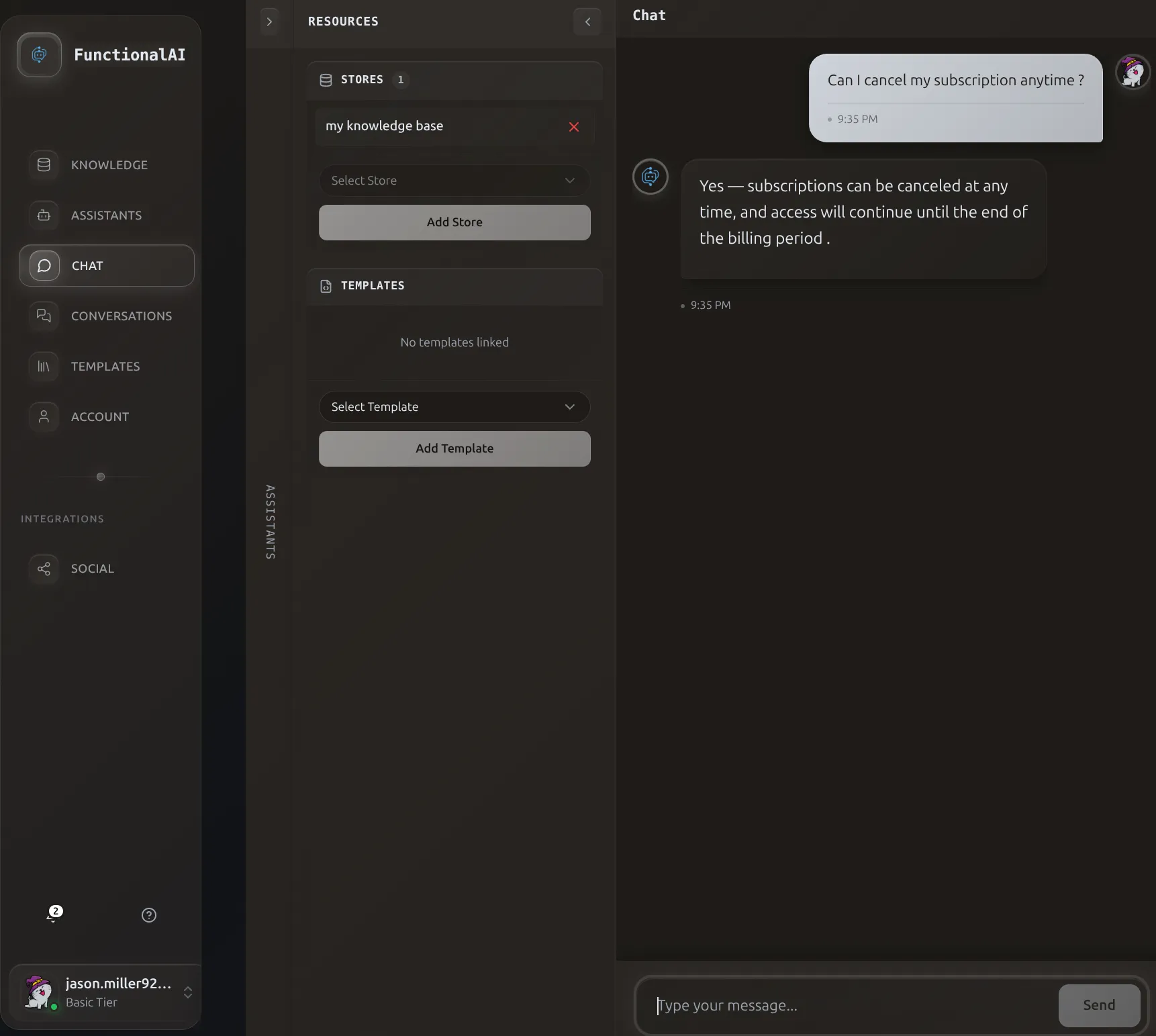 The Chat page lets you test your assistant with connected knowledge stores and see RAG-powered responses.
Accessing Chat
- Click Chat in the sidebar
- The chat interface opens with three panels
Left Panel: Assistants & Threads
Selecting an Assistant
- View your assistants in the left panel
- Click on an assistant to select it
- The assistant's threads appear below
Managing Threads
Each assistant can have multiple conversation threads:
- Click New Thread to start a fresh conversation
- Click on an existing thread to continue it
- Threads preserve message history
Middle Panel: Resources
Connected Stores
View and manage knowledge bases:
- See currently connected stores
- Click Add Store to connect additional stores
- Click the disconnect icon to remove a store
Connected Templates
View and manage function templates:
- See active templates
- Add or remove templates as needed
Temporary Changes
Changes made in the middle panel during chat are for testing. To make permanent changes, use the assistant's management page.
Collapsing the Panel
Click the collapse icon to hide the middle panel and expand the chat area.
Right Panel: Conversation
Sending Messages
- Type your message in the input field
- Press Enter or click the send button
- Wait for the assistant's response
Message Display
User messages appear on the right with your avatar.
Assistant messages appear on the left with: - The assistant's avatar - Formatted response (markdown supported) - Message metadata (model, tokens used)
Message Formatting
The assistant can use rich formatting:
- Bold and italic text
Code snippets- Code blocks with syntax highlighting
- Lists and tables
- Links
Testing Scenarios
Basic Conversation Test
You: Hello, who are you?
Assistant: [Should introduce itself based on instructions]

You: What can you help me with?
Assistant: [Should describe its capabilities]
Knowledge Base Test
You: [Ask something specific from your uploaded documents]
Assistant: [Should provide accurate information from the knowledge base]

You: Where did you find that information?
Assistant: [May reference the source or context]
Boundary Test
You: [Ask about something outside the assistant's scope]
Assistant: [Should handle gracefully per instructions]

You: [Ask something inappropriate]
Assistant: [Should decline appropriately if SafeGuard is on]
Tips for Effective Testing
Simulate Real Users
Think like your actual users: - Use natural language, not technical terms - Try common misspellings - Ask incomplete questions - Test follow-up questions
Test Edge Cases
- Very short messages: "Hi"
- Very long messages: Multi-paragraph questions
- Multiple questions at once
- Rapid successive messages
Verify Knowledge Retrieval
- Upload a document with unique information
- Ask about that specific information
- Verify the response includes the correct details
- Try rephrasing the question differently
Track What Works
Note which types of: - Instructions produce best results - Questions the assistant handles well - Scenarios need improvement
Mobile Responsiveness
The chat interface adapts to smaller screens:
- Panels collapse into a menu
- Swipe to switch between panels
- Full-screen conversation view
Troubleshooting
Messages not sending
- Check your internet connection
- Refresh the page
- Try a different browser
Slow responses
- Large knowledge bases may slow retrieval
- Complex queries take longer
- Check for rate limiting on your tier
Assistant not using knowledge base
- Verify the store is connected (check middle panel)
- Ensure documents were processed (Finish Upload)
- Try more specific questions
Unexpected responses
- Review assistant instructions
- Check temperature setting
- Test with simpler questions first
Keyboard Shortcuts
| Shortcut | Action |
|---|---|
| Enter | Send message |
| Shift + Enter | New line (without sending) |
| Escape | Clear input |
Best Practices
Before Testing
- Set up assistant with clear instructions
- Connect relevant knowledge bases
- Prepare test scenarios
- Note expected behaviors
During Testing
- Test various question types
- Note unexpected behaviors
- Try edge cases
- Test in both light and dark themes
After Testing
- Document findings
- Update assistant instructions
- Re-test problem areas
- Verify fixes work